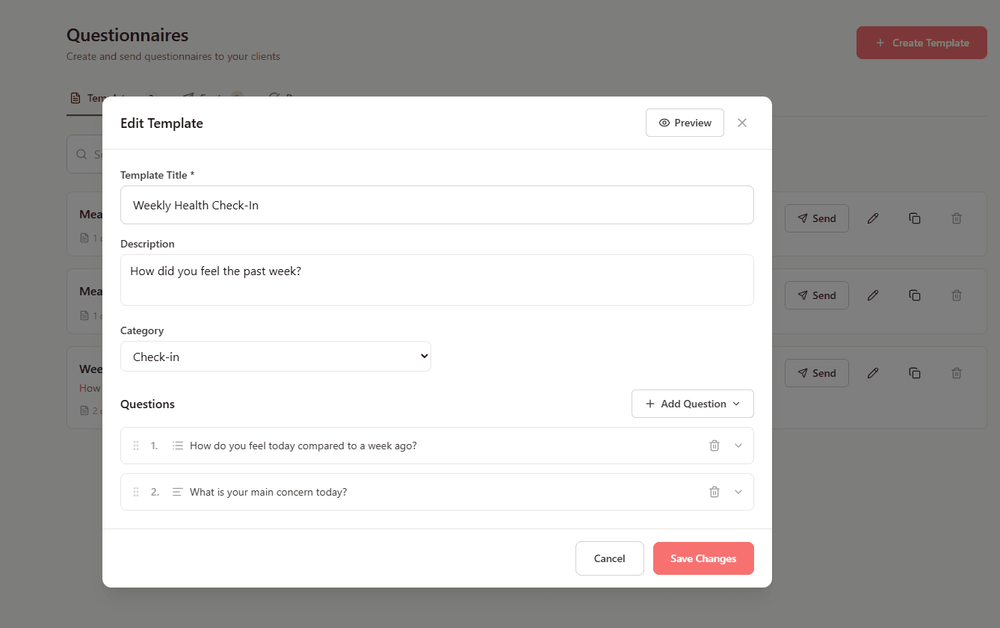
CardioMood's Questionnaires feature lets you create custom forms to collect qualitative data from clients - mood assessments, progress check-ins, symptom tracking, program satisfaction, or any information you need beyond physiological metrics. Design reusable templates, schedule delivery via in-app or email, track completion status, and analyze responses - all from one centralized system that integrates seamlessly with your clients' health data.
Key Features and Benefits
Flexible Template Creation
Build custom questionnaires with multiple question types: Short Text, Long Text, Multiple Choice, Checkboxes, Yes/No, Rating (1-10), Number, Date, and Dropdown
Organized by Category
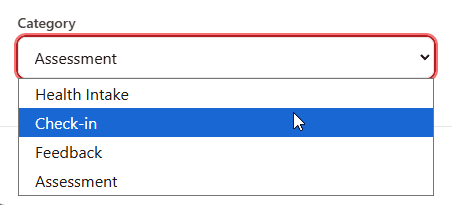
Classify templates as Assessment, Health Intake, Check-in, or Feedback for easy management and selection
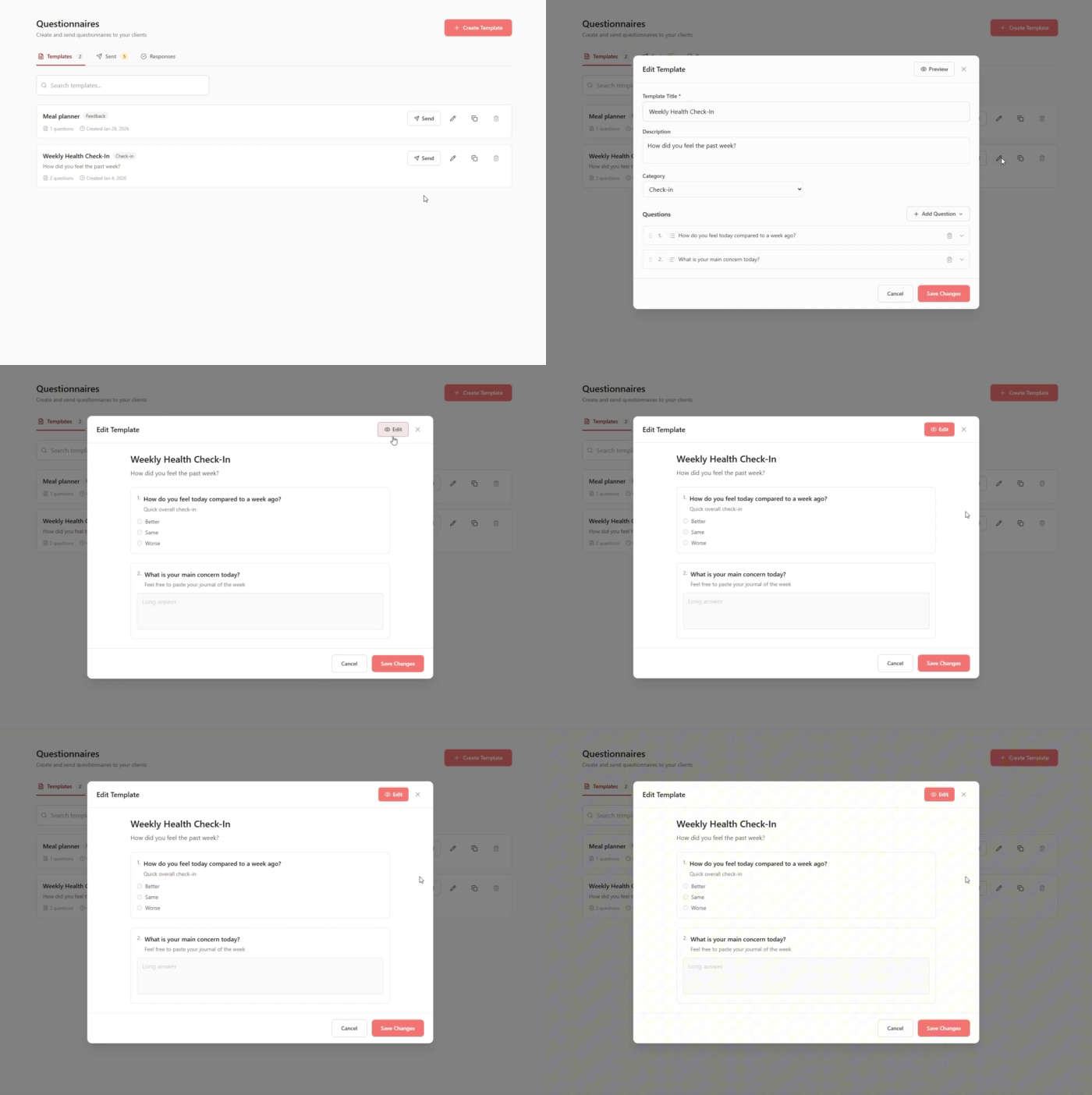
Preview Before Sending
Review exactly how questionnaires will appear to clients before deployment
Multiple Delivery Methods
Send via In-App Only, Email Only, or Both channels based on how you want to reach clients

Flexible Scheduling
Send immediately, schedule for a specific date/time, or set up recurring delivery (Weekly, Every Two Weeks, Monthly)
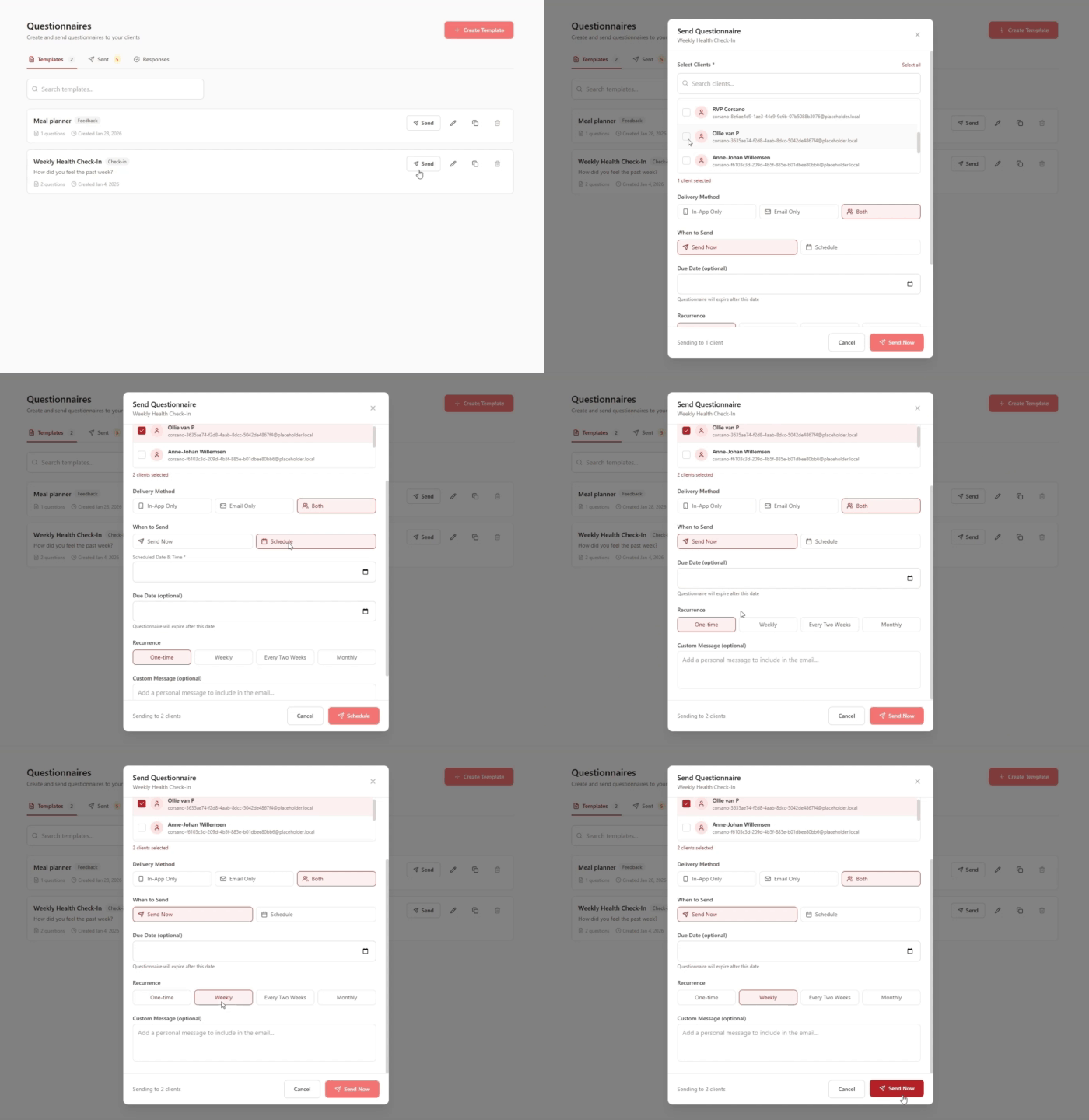
Optional Due Dates Set expiration dates so questionnaires automatically close after a certain period
Template Management
Edit, duplicate, or delete templates as your practice needs evolve
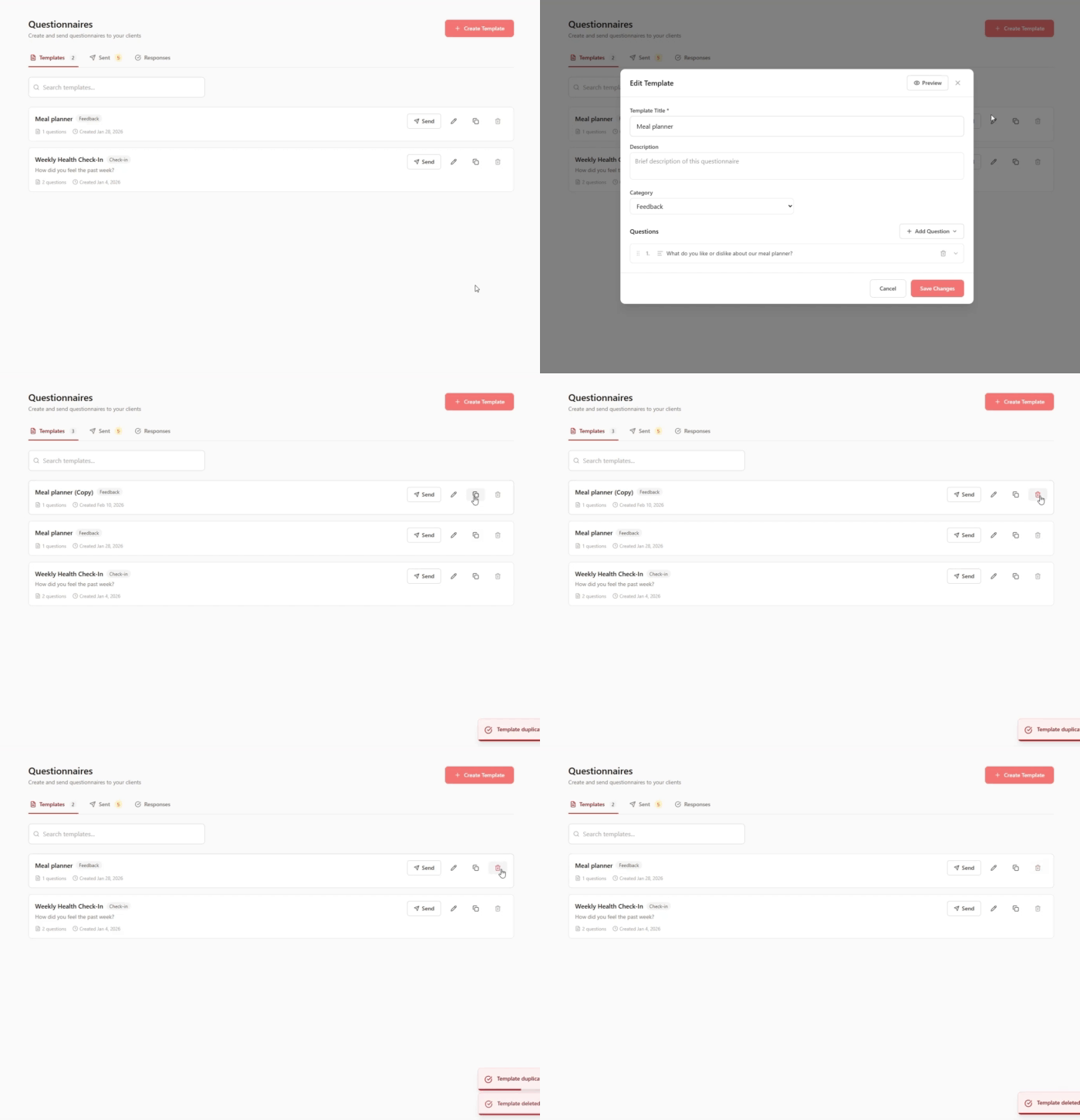
Comprehensive Analytics
Track completion status (Pending, Scheduled, Cancelled, Completed, Expired) across all sent questionnaires
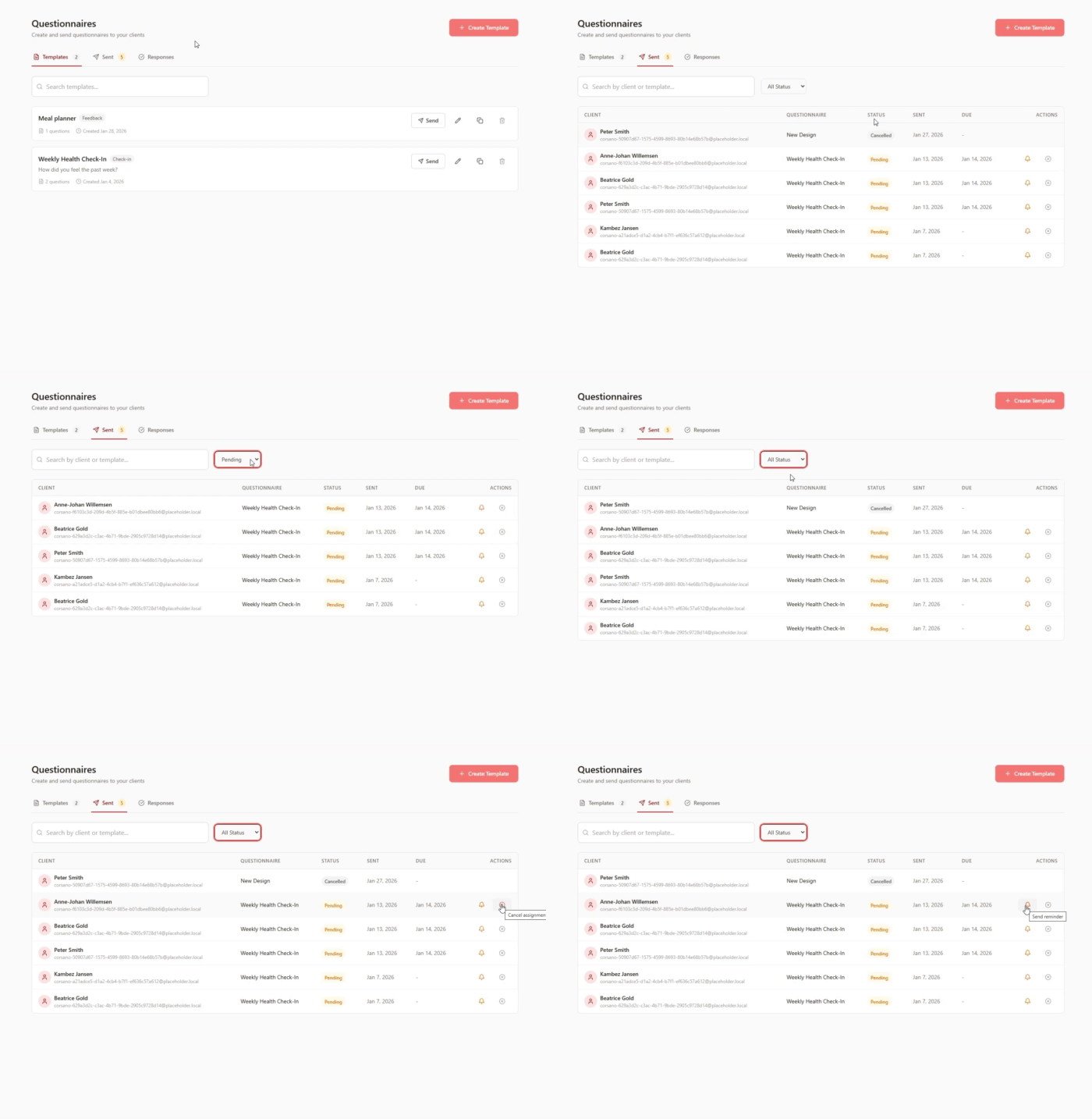
Client-Level Tracking See which clients have completed questionnaires, and who needs reminders
Send Reminders or Cancel Manually send reminder notifications to clients or cancel assignments directly from the analytics table
Centralized Response Management Search and review all client responses in one organized interface
How It Works
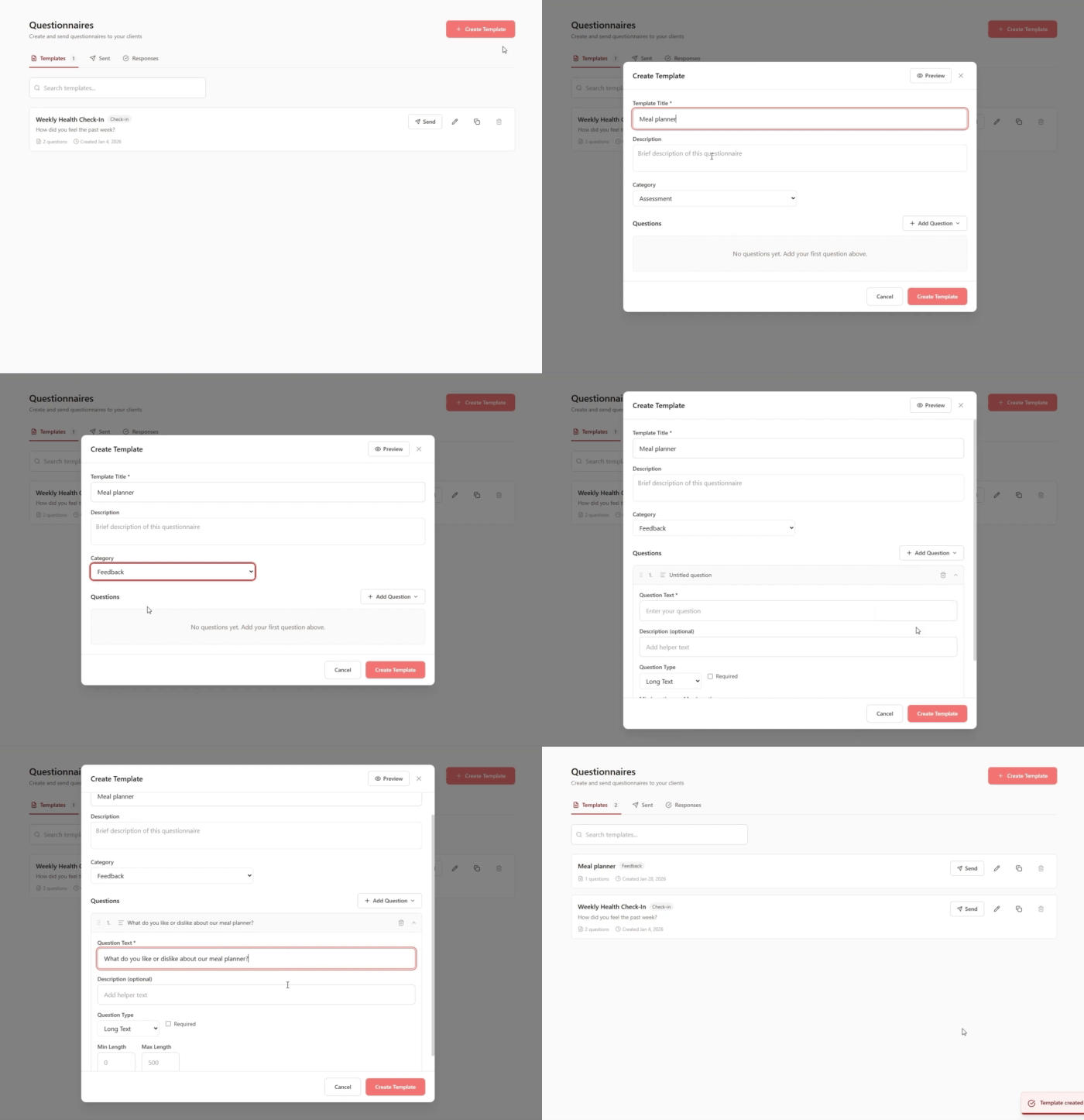
1. Create Your Template Build a questionnaire with your desired questions, add a title and description, assign it to a category (Assessment, Health Intake, Check-in, Feedback)
2. Preview and Save Review how the questionnaire will look to clients, then save as a reusable template
3. Send to Clients Select one or multiple clients (or all), choose delivery method (In-App, Email, or Both), set timing (Now, Schedule, or Recurring), and add optional due dates and custom messages
4. Track and Manage Monitor completion status in the analytics table, send reminders to clients who haven't responded, or cancel assignments as needed
5. Review Responses Search through submitted responses to analyze patterns, identify client needs, and inform your coaching approach
Real-World Example
The Mood-Physiology Connection
You're working with Lisa, who's dealing with chronic stress and inconsistent energy levels. Her CardioMood device shows physiological markers - HRV fluctuations, variable sleep quality, elevated stress scores - but you need to understand the psychological and situational context behind the numbers.
You create a "Weekly Wellness Check-in" template categorized as Check-in with these questions:
- "How would you rate your overall mood this week?" (Rating 1-10)
- "How many days did you feel energized?" (Number)
- "Any significant stressors this week?" (Multiple Choice: work, family, health, other)
- "On a scale of 1-10, how in control of your stress did you feel?" (Rating 1-10)
- "What was your biggest win this week?" (Long Text)
You set it up to send via Both (in-app and email) every Friday at 4 PM on a recurring Weekly schedule. You add a custom message: "Lisa, take 3 minutes to reflect on your week. Your insights help me support you better!"
After a month, you review her responses in the Responses section and notice a powerful pattern: weeks where Lisa rates her "stress control" as 7+ correlate with 15% higher HRV and significantly better sleep efficiency. But weeks where she reports feeling "out of control" show physiological stress markers even on days with no objectively stressful events logged.
This insight changes your coaching approach. You shift focus from stress management techniques to building her sense of agency and control - addressing the psychological pattern driving her physiological response. Over the next six weeks, both her questionnaire responses and her physiological markers show marked improvement.
The analytics table shows her completion status is "Completed" every week, so you know she's engaged. When one week shows "Pending," you use the "Send Reminder" action to gently nudge her.
Without the questionnaires, you would have seen the HRV and stress data but missed the underlying psychological pattern. The combination of subjective self-report and objective physiology revealed the complete picture.
What Makes CardioMood's Questionnaires Different
Standalone survey tools like Typeform or Google Forms collect responses but exist in isolation. Generic practice management systems might include basic forms but don't integrate with health data or offer sophisticated delivery and tracking features.
CardioMood's Questionnaires uniquely sit alongside continuous physiological monitoring. When a client reports "I had a terrible week" in their mood assessment, you can see what their body was doing that week - was sleep disrupted? Was stress elevated? Did HRV drop? The integration reveals connections between subjective experience and objective physiology that neither data source could show alone.
The comprehensive analytics table gives you complete visibility: which questionnaires are pending, which clients need reminders, and which have expired. You can send targeted reminders or cancel assignments with one click - no manual email tracking or spreadsheet management required.
Getting Started
Create your first template - Start with a simple weekly check-in using 5-6 questions with varied question types
Preview before sending - Always review how questionnaires appear to ensure clarity and proper formatting
Test with a small group - Send to 3-5 clients first to refine questions based on their feedback
Set up recurring delivery - Schedule weekly or monthly questionnaires to automate regular check-ins
Monitor the analytics table - Check completion status regularly and send reminders to clients who haven't responded
Review responses for patterns - Search through submissions to identify trends across your client base
Build a template library - Create templates for different purposes: intake assessments, program milestones, satisfaction surveys
Frequently Asked Questions
What question types are available? You can create questions using Short Text, Long Text, Multiple Choice, Checkboxes, Yes/No, Rating (1-10), Number, Date, and Dropdown formats. Mix and match question types within one questionnaire.
Can I edit templates after creating them? Yes. Edit any template at any time. You can also duplicate templates to create variations or delete templates you no longer need. Changes to templates don't affect already-sent questionnaires.
How does recurring delivery work? Set questionnaires to send automatically on a recurring basis: Weekly, Every Two Weeks, or Monthly. The system sends them according to your schedule without manual intervention.
What delivery methods are available? Choose from In-App Only (appears only in the client's CardioMood app), Email Only (sent via email), or Both (appears in-app and is sent via email for maximum visibility).
What happens if clients don't complete questionnaires? The analytics table shows completion status for every sent questionnaire. Filter by "Pending" to see who hasn't responded, then use the "Send Reminder" action to nudge specific clients. If you set a due date, questionnaires automatically expire and show as "Expired."
Can I send the same questionnaire to multiple clients? Absolutely. When sending a questionnaire, select multiple clients from your list or choose "Select All" to send to your entire practice.
How do I track which clients have completed questionnaires? The analytics table shows every sent questionnaire with client name, questionnaire title, status (Pending, Scheduled, Cancelled, Completed, Expired), sent date, and due date. Search by client or template name, or filter by status.
Can I add a personal message when sending questionnaires? Yes. The optional custom message field lets you add context or encouragement that appears when clients receive the questionnaire via email or in-app notification.
What categories can I assign to templates? Organize templates into four categories: Assessment (formal evaluations), Health Intake (initial client information), Check-in (regular progress updates), or Feedback (satisfaction and program evaluation). Categories help you find templates quickly.
Can I cancel a questionnaire after sending it? Yes. Use the "Cancel Assignment" action in the analytics table to remove questionnaires that haven't been completed yet. This is useful if you sent something by mistake or if client circumstances change.
How do I review client responses? Navigate to the Responses section where you can search through all submitted questionnaires. This centralized view lets you analyze patterns across clients and time periods.
Ready to understand the complete picture? Combine subjective insights with objective physiological data through flexible questionnaires that reveal the "why" behind the metrics.