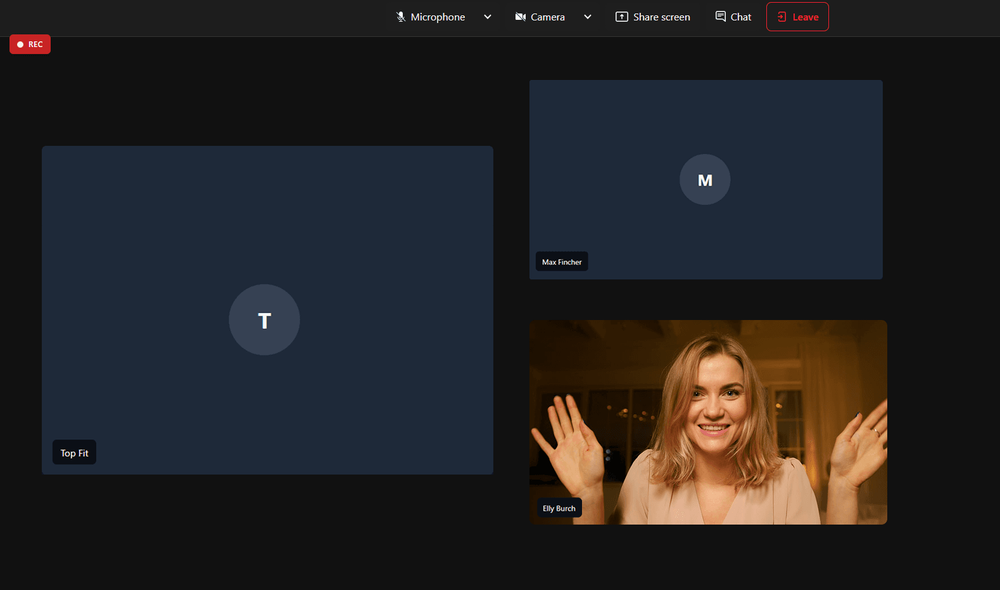
CardioMood's Video Conference Tools provide a complete virtual coaching solution without juggling multiple platforms. Schedule meetings directly in the platform, conduct video calls with built-in audio/video testing, attach relevant materials for each session, manage pre and post-session notes, track action items, and access automatic recordings with transcription - all integrated with your client's health data. It's Zoom, session notes, and practice management combined into one seamless experience.
Key Features and Benefits
Native Video Calling
Host video calls directly within CardioMood without switching to external platforms like Zoom or Google Meet
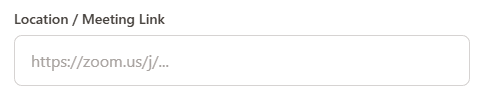
External Platform Integration
Prefer another video tool? Add your own meeting link (Zoom, Google Meet, etc.) and manage everything else in CardioMood
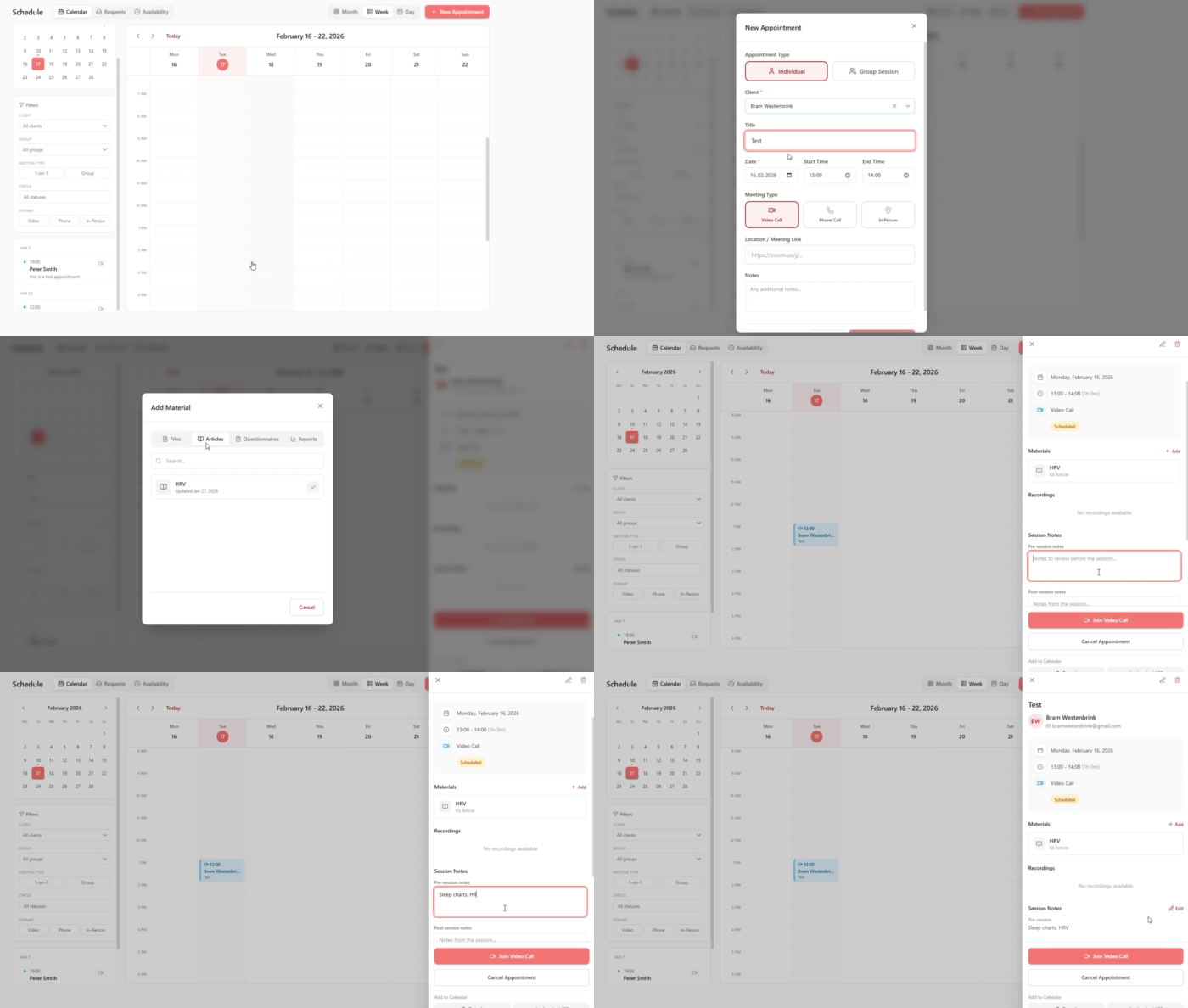
Pre-Session Preparation
Attach materials before calls: files, Knowledge Base articles, questionnaires, and health reports - clients access everything in one place
Comprehensive Session Notes
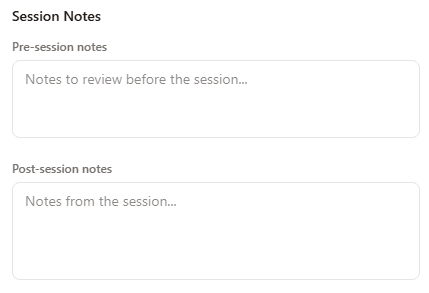
Capture pre-session notes (preparation, client status, topics to cover) and post-session notes (what was discussed, outcomes, observations)
Action Item Tracking
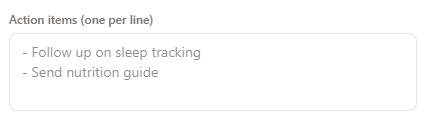
Document follow-up tasks in a clear list format that keeps you and clients accountable between sessions
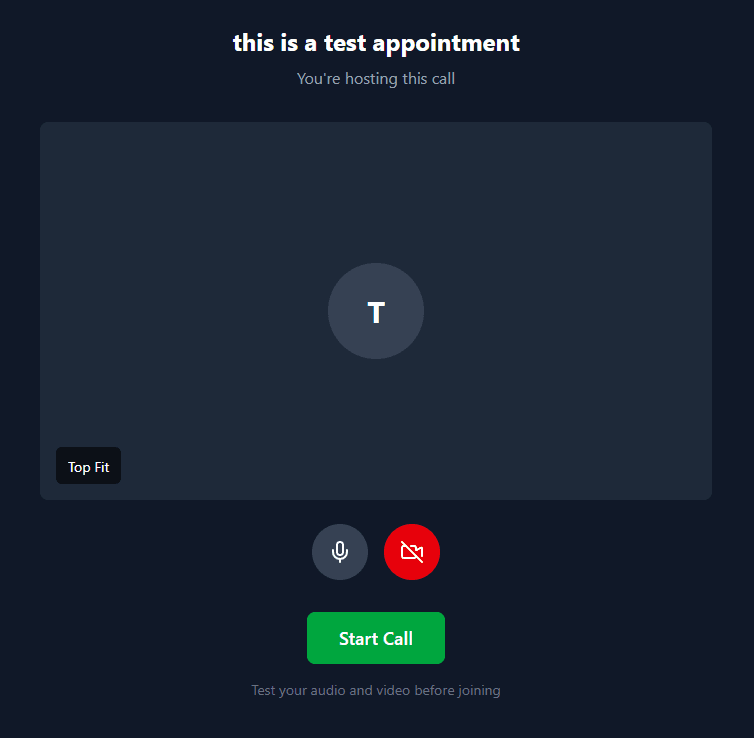
Audio/Video Testing Test your equipment before joining to ensure professional, glitch-free calls
Automatic Recording
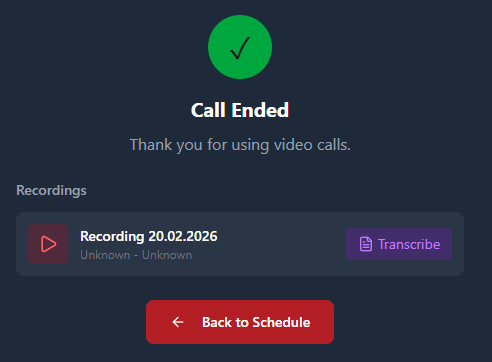
Every call is recorded automatically and stored securely in your Recordings section
Download and Playback
Access, play, and download any past session recording for review or documentation
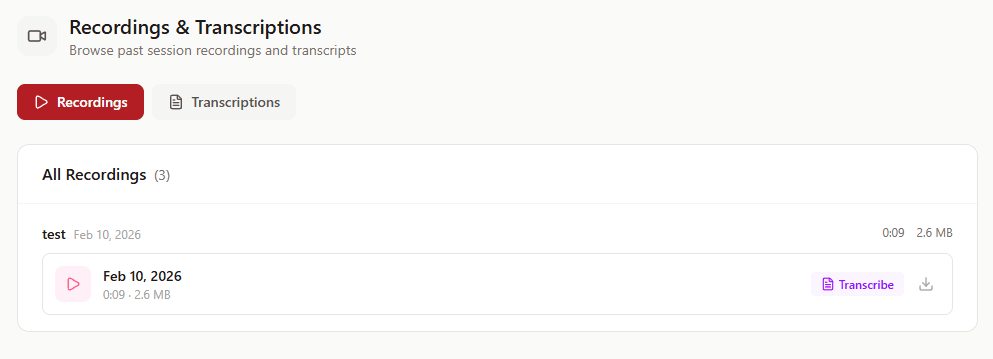
AI Transcription Transform recorded sessions into searchable text transcripts for easy reference and note-taking
How It Works
1. Schedule a Meeting Create a meeting with your client(s) and choose "Video Call" as the meeting type (or add an external meeting link if using another platform)
2. Prepare the Session Add pre-session notes, attach relevant materials (files, Knowledge Base articles, questionnaires, reports), and outline topics to cover
3. Test and Join Before the call, test your audio and video to ensure quality, then join the meeting when ready
4. Conduct Your Session Meet with clients via the integrated video call, reference attached materials, and discuss their health data - all in one interface
5. Document and Follow Up Add post-session notes, create an action item list for follow-up tasks, and let the system automatically record and transcribe the session
6. Review and Reference Access recordings in the Recordings section - play them back, download for your records, or review transcripts to recall details from past sessions
Real-World Example
The Comprehensive Client Review
You have a monthly progress review scheduled with Marcus, a client working on stress management and athletic performance. Here's how the Video Conference Tools streamline the entire session:
Monday (3 days before the call):
You schedule the meeting and add pre-session notes:
- "Review Marcus's HRV trends from past month - significant improvement since implementing evening meditation"
- "Discuss the stress spike during work conference week"
- "Check in on nutrition compliance - he mentioned struggles with lunch planning"
You attach materials:
- His 30-day health report (PDF)
- "Advanced Stress Management Techniques" article from your Knowledge Base
- "Monthly Progress Check-in" questionnaire you want him to complete before the call
- Your "Meal Prep Quick Guide" PDF
Marcus receives a notification with all materials. He completes the questionnaire and reviews the report before Thursday.
Thursday (call day):
You test your audio and video 5 minutes before the session - everything works perfectly.
You join the call. Marcus is already there, and you can see he's reviewed the materials because he references specific data from his report.
During the 45-minute session:
- You discuss his HRV improvement (the data is right there in his CardioMood dashboard)
- Review his questionnaire responses about stress triggers
- Go through the attached health report together, celebrating his 18% HRV baseline improvement
- Address his nutrition struggles and reference the meal prep guide you sent
The conversation is flowing, productive, and you're taking mental notes but not stressing about documentation because you know it's being recorded.
After the call:
You add post-session notes:
- "Marcus is highly motivated by seeing HRV improvements. Continue emphasizing data-driven progress."
- "Work stress is manageable now with meditation practice. New challenge: nutrition consistency during travel weeks."
- "He responded well to the meal prep guide - send more practical resources like this."
You add action items:
- Follow up on sleep tracking after his business trip next week
- Send the travel nutrition guide by Friday
- Check in about meditation streak on Monday
- Schedule next monthly review for same time next month
Two weeks later:
You're preparing for a different client but want to recall what you discussed with Marcus. You open the Recordings section, find Marcus's session, and either:
- Play back the recording to hear the exact conversation
- Review the AI transcript to quickly search for "nutrition" and find that part of the discussion
- Reference your post-session notes and action items
You see that you committed to sending the travel nutrition guide (action item #2), which you did. You also notice his business trip is this week (action item #1), so you send a quick check-in message about his sleep data.
The Impact:
The integrated video conferencing saved you from:
- Switching between Zoom, email (to send materials), a note-taking app, a task manager, and your health platform
- Forgetting what you discussed because you were too focused on note-taking during the call
- Losing track of follow-up commitments
- Searching through multiple platforms to find past session details
Everything happened in one place, with automatic recording and transcription ensuring nothing was lost.
What Makes CardioMood's Video Conference Tools Different
Standalone video platforms like Zoom or Google Meet excel at video quality but offer no health data integration, session management, or automatic material delivery. Practice management systems might schedule appointments but require external video tools. Note-taking apps capture session documentation but aren't connected to your coaching workflow.
CardioMood's Video Conference Tools integrate everything. During a video call, you're looking at the same interface that shows the client's HRV trends, sleep data, and habit compliance. You don't need to screen share between applications or ask clients to open multiple tabs.
The materials attachment feature is particularly powerful for preparation. Instead of emailing PDFs, links to articles, and questionnaires separately, you attach everything to the meeting. Clients get one notification with all materials organized and ready. They arrive to sessions prepared because the friction of accessing resources is eliminated.
Automatic recording with transcription transforms session documentation. You can be fully present during coaching conversations instead of frantically typing notes. The AI transcript makes recordings searchable - type "nutrition plan" to instantly find that part of a 60-minute conversation from three weeks ago.
For coaches building professional practices, having an integrated video solution under your own platform (especially with white-labeling) is more professional than sending Zoom links. It demonstrates investment in a cohesive client experience.
Getting Started
Choose your video approach - Decide whether to use CardioMood's native video calling or integrate your existing platform (Zoom, Google Meet) via meeting links
Test your setup - Use the audio/video testing feature before your first client call to ensure quality
Create a meeting template workflow - Develop a standard process for pre-session notes, materials to attach, and typical action items
Attach materials strategically - Send health reports, relevant articles, and questionnaires with meeting invitations to ensure clients arrive prepared
Use action items consistently - Document 3-5 clear follow-up tasks after every session to maintain momentum
Review recordings weekly - Set aside time to review transcripts and ensure you're following through on commitments
Build a recordings archive - Use past session recordings and transcripts as reference when clients return months later or for quality improvement
Frequently Asked Questions
Do I have to use CardioMood's video calling? No. You can choose "Video Call" to use the native platform, or add your own meeting link (Zoom, Google Meet, Microsoft Teams, etc.) if you prefer an external tool. Either way, you get the session management, materials, notes, and action tracking features.
Are recordings stored securely? Yes. All recordings are stored within CardioMood's HIPAA-compliant infrastructure and are only accessible to you and authorized team members. Clients don't automatically see recordings unless you explicitly share them.
How does transcription work? After each recorded session, AI automatically generates a text transcript. Access it in the Recordings section where you can search for specific keywords, review sections, or export the full transcript.
Can I turn off recording for sensitive sessions? Recording settings can typically be controlled per session. Check your platform settings to enable/disable recording based on session needs and client preferences.
What types of materials can I attach? You can attach files (PDFs, documents, images), Knowledge Base articles from your library, questionnaires for clients to complete, and health reports generated from their data.
Do clients receive materials before the meeting? Yes. When you attach materials to a scheduled meeting, clients receive notifications and can access everything in advance, allowing them to come prepared.
Can I schedule group video calls? Yes. When scheduling a meeting, you can select multiple clients to create a group session - useful for group coaching programs or cohort-based training.
How long are recordings stored? Recordings are stored indefinitely in your Recordings section unless you manually delete them. This creates a comprehensive session archive for reference and documentation.
Can I edit session notes after the call? Yes. Pre-session and post-session notes can be edited at any time. This is useful if you remember additional details later or want to update action items as they're completed.
What happens to action items after I create them? Action items serve as documentation and reference for follow-up. While they don't automatically create tasks or reminders (this would be a nice future feature), they provide a clear record of commitments made during each session.
Ready to streamline your virtual coaching? Conduct professional video sessions with automatic recording, transcription, and complete session management - all integrated with your clients' health data in one platform.